Payment cards
We give you a payment card if you've been granted help to pay for some urgent, unexpected or one-off costs. This can be things like food, groceries, glasses, and dental treatment.
You must have set a personalised PIN on your payment card before you can use it.
What is a payment card?
- A payment card is a reusable green card, like an EFTPOS card.
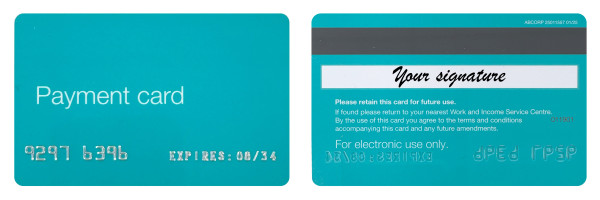
- You can use it to pay for urgent, unexpected or one-off costs. You can apply for help with these costs in MyMSD or over the phone.
- If your application is approved, we'll put this money onto a payment card.
- You can only use the card at the shop we assign the payment to, unless it's for food and groceries – the card will work at all major grocery stores.
- You need to spend the money within 7 days (for glasses you have up to 28 days).
Open transcript
Narrator [00:00:00]: Payment cards are an easy way we can help you pay for urgent or unexpected one off costs. This can be things like food, groceries, glasses, or dental treatment.
[An image of a payment card next to an EFTPOS machine appears. 4 videos appear in a grid, one of a woman walking through a supermarket aisle, one of a man being fitted for glasses at an optometrists, one of a set of false teeth being cleaned, and one of a woman walking through a Work and Income service centre towards the counter.]
Narrator [00:00:12]: First, you need to apply for help with these costs. You can do this in MyMSD or by calling us.
[A cellphone shows the MyMSD login screen. Then an application form in MyMSD appears and the 'Food costs' box is ticked.]
Narrator [00:00:19]: Once your application is approved, you'll need a card. If you already have a card, we will load the money onto this. If you don't have a card, you’ll need to pick one up from a Work and Income service centre. You don't need an appointment, but you do need to bring your ID and client number.
[A blue circle appears with an orange tick in it and then a picture of a payment card. The screen changes and a woman walks through the front doors of a Work and Income service centre towards the reception desk. She talks to a Work and Income staff member and hands them her ID card.]
Narrator [00:00:36]: Payment cards can only be used in shops that are registered with us. We'll talk about what shop you need to go to when you apply.
[A person walks down a supermarket aisle and the screen changes to show groceries on a supermarket conveyer belt.]
Narrator [00:00:44]: Before you use your card, you need to set a PIN. You can do this in MyMSD or by calling us.
[A hand holds a phone showing the 'My payment cards' screen in MyMSD. Someone sets a PIN in MyMSD.]
Narrator [00:00:51]: To pay with the card, swipe it through the EFTPOS machine, select “Cheque”, enter your PIN and sign the receipt. You don't need to spend all the money in one go, but you can't get cash out or buy things like gift cards or vouchers.
[A person swipes a payment card through an EFTPOS machine, presses the 'Cheque' button, enters their PIN and signs a receipt. The screen changes to a woman looking at items on a supermarket shelf.]
Narrator [00:01:07]: Use MyMSD to check how much money is on the card and when it will expire. And make sure you keep your card in a safe place so you can use it again if you need to.
[A hand holds a phone, showing the 'My payment cards' screen in MyMSD. The screen changes to a hand placing a payment card into a wallet.]
Narrator [00:01:18]: For more information about payment cards visit www.workandincome.govt.nz/paymentcard or give us a call.
[Our website address appears 'workandincome.govt.nz/paymentcard' and phone number '0800 559 009'.]
Set your payment card PIN
You need to set a personalised PIN to use your payment card. If you haven't set your own PIN the card won't work.
If you have more than one card, you need to set a PIN for each card.
How to set your PIN:
- Log in to MyMSDexternal.
- Go to 'My payment cards'.
- Select the card you want to add a PIN for.
- Enter a 4-digit PIN - don't use a PIN that is consecutive, easily associated with you (like birthdays), or the numbers on your card.
- Re-enter your PIN to confirm.
- Done! Your PIN is now ready to go.
Other ways to set your PIN:
- Call us and say "set my card PIN"
- register your voice so you can set your PIN by calling us at any time without waiting to talk to a person
- our staff in our service centres can help set your PIN in MyMSD
- we have other ways you can contact us if you're deaf, hard of hearing or have a speech impairment
Reset your PIN
You can reset your PIN by following the same steps above.
Locked card
The card will lock if you enter an incorrect PIN 5 times. You can unlock this by resetting your PIN, or wait until the next day – the card will unlock automatically at midnight.
Find out more about payment cards
Problems with your payment card
Payment card information for suppliers
Youth Service payment cards
If you're a young person in Youth Service getting payments, you can find out about your payment cards on the Youth Service website: