Upload your documents to MyMSD
If we've asked you to provide some documents, you can upload them to your MyMSD account.
You might be applying online for assistance in MyMSD and uploading a document as part of your application. In this case, MyMSD will tell you what to do as part of the application process.
If you're not applying online, you can log in to MyMSD and upload any documents we've asked for. You may need to call us first, on 0800 559 009 so we can open this function for you. We've provided step by step instructions below under 'How to upload a document'.
Types of files and sizes to upload
You can upload:
- JPEG and PNG files, less than 5MB
- Word and Excel files, less than 500KB
- PDF files, less than 5MB.
Screenshots
If you're providing a screenshot, it needs to include:
- your information, e.g. your name, account details
- the name or logo of the website or app
- the web address if it’s from a website
- all relevant information from the website or app (e.g. your account details).
Photos of documents
If you're taking a photo of a document, make sure the text is readable.
Uploading PDF
If you're uploading a PDF, make sure the document name ends with .pdf in lowercase, e.g. mypassport.pdf
If it's in uppercase (e.g. .PDF) then our system will not be able to accept it.
Unlock your document
Make sure your document is unlocked, e.g. make sure it:
- is not set to 'read only'
- is not locked for editing, and
- does not have a password.
How to upload a document
The below process is for uploading documents that aren't part of an online application.
Before you start
If the 'Upload documents' function isn't available, call us on 0800 559 009 so we can open it for you.
Make sure you save the document or photo to the same device you're using MyMSD on.
Then follow these steps
Step 1
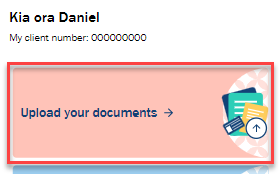
- Select 'Upload your documents' (you may need to refresh the page to see the button).
Step 2
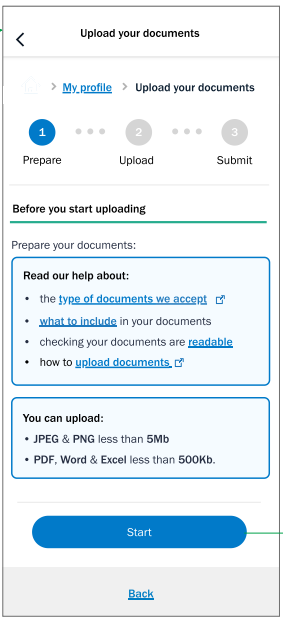
- You can use the links under 'Read our help about' for tips on successfully uploading documents.
- Once you're ready, select 'Start' to continue.
Step 3
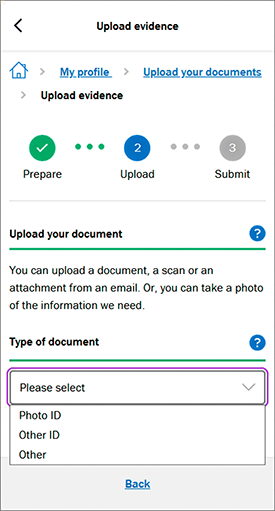
- Under 'Type of document' use the arrow beside 'Please select' to open up the options.
- Select the type of document you want to upload.
- Then select 'Next'.
Step 4
- Select the grey box to browse through documents saved on your device.
- If you're on a PC, you can also drag and drop your document into the grey box.
- Select 'Next' to save your document.
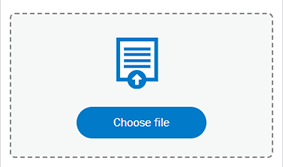
Screenshot of grey box in MyMSD you need to select to browse through documents saved on your device
Step 5
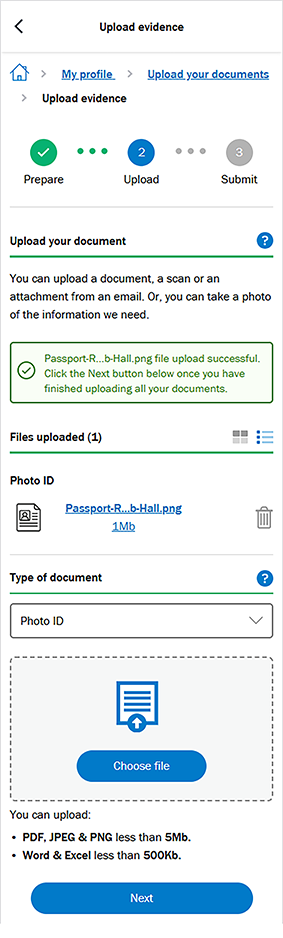
You'll see a green banner if your document has been loaded successfully.
- Repeat step 4 if you have more documents to upload.
- A red banner means there's a problem with your document. Repeat step 4 to try again.
- Select 'Next' again when you have finished uploading all of your documents.
Step 6
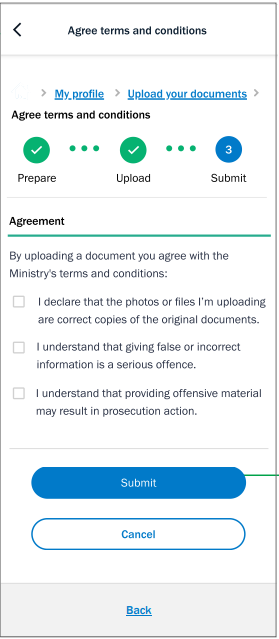
- Select all 3 boxes if you agree.
- Select 'Submit' to accept the terms and conditions and send your documents to us.
Step 7
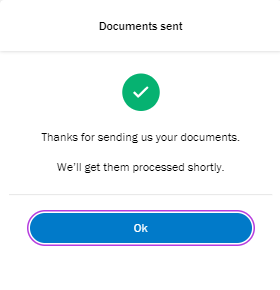
- Select 'Ok' to confirm you know the documents have been sent to us.