Using the Chrome browser
This page can help you use the Chrome browser, which this kiosk runs on.
Jump to:
Creating a new browser tab
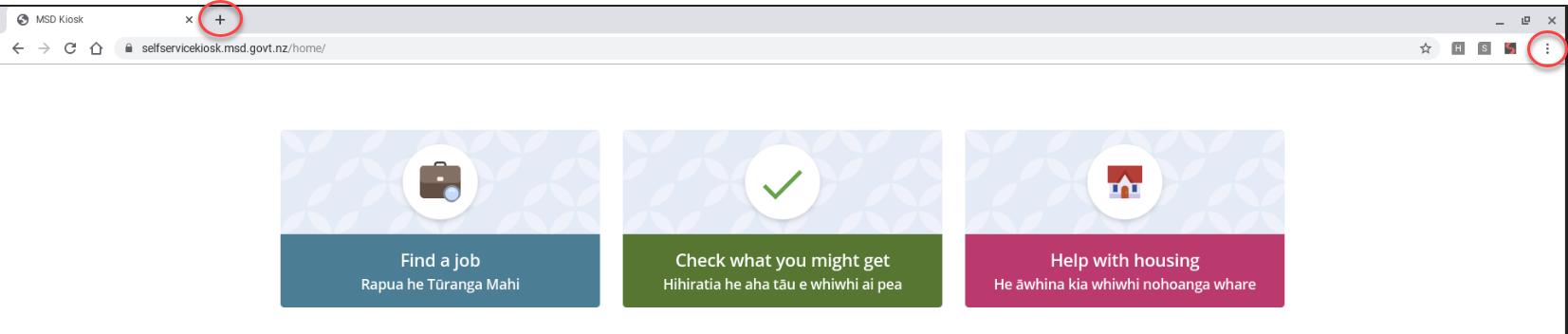
- To create a new browser tab, select either the:
- ‘+’ (plus) icon at the top of the browser window, or
- three dots in the top right-hand corner of the browser window and then ‘New tab’.
- A new tab will open with the Google search box.
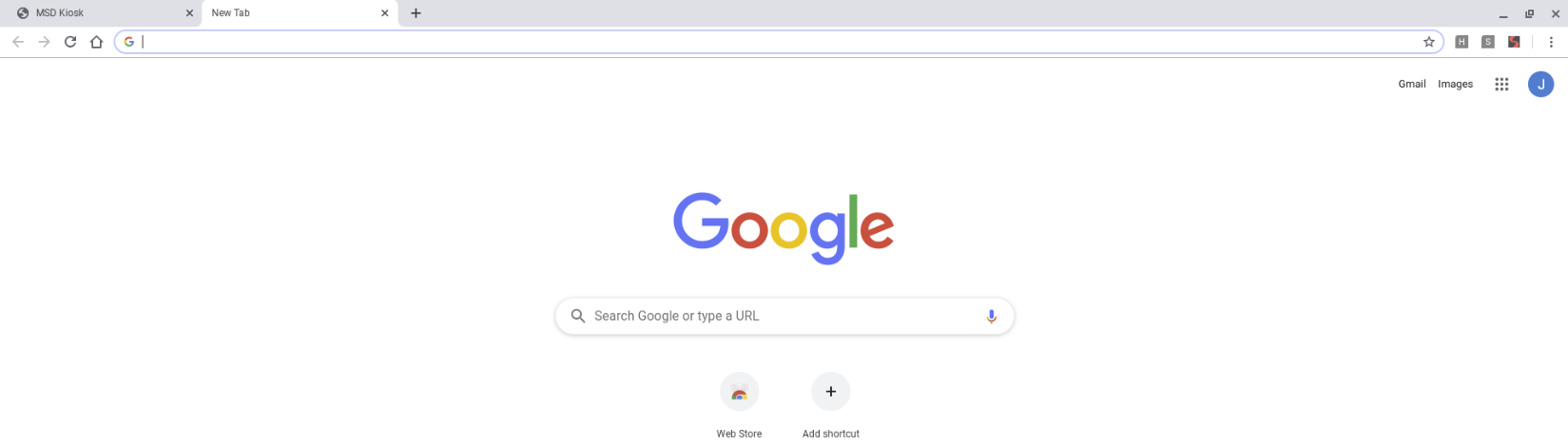
- You can either:
- type your keywords into the Google search box and press ‘Enter’ on your keyboard to run a search, or
- enter the website URL in to the browser.
Relaunching the browser
If you accidentally close the browser, select the ‘Chrome’ icon at the bottom of the screen in the footer. This will open the kiosk home page.

Go back to the kiosk home page
As you use the kiosk, it will open new content in a new browser tab. You may end up with a few browser tabs open at once. The first tab will still have the ‘MSD kiosk’ open (unless you’ve closed the tab or entered a website address into that tab’s URL bar).
- Select the ‘MSD kiosk’ tab to navigate back to the kiosk.

- If the ‘MSD kiosk’ tab is no longer there, you can go back to the kiosk home page by selecting
either the:
- ‘home’ icon in the toolbar

- or the ‘Chrome’ icon at the bottom of the screen.
- ‘home’ icon in the toolbar