Saving your documents
This page can help you to save your documents.
Jump to:
Save to the kiosk (not on USB)
Anything you've saved to the kiosk will be deleted when you exit your session.
If you save your document to the kiosk, you’ll need to email it to yourself afterwards. If you want to save your document to USB, see Save to USB.
- As you’re editing your document, a message will display at the top of the page: ‘Edits will not be
automatically saved. Save now’. Select ‘Save now’.
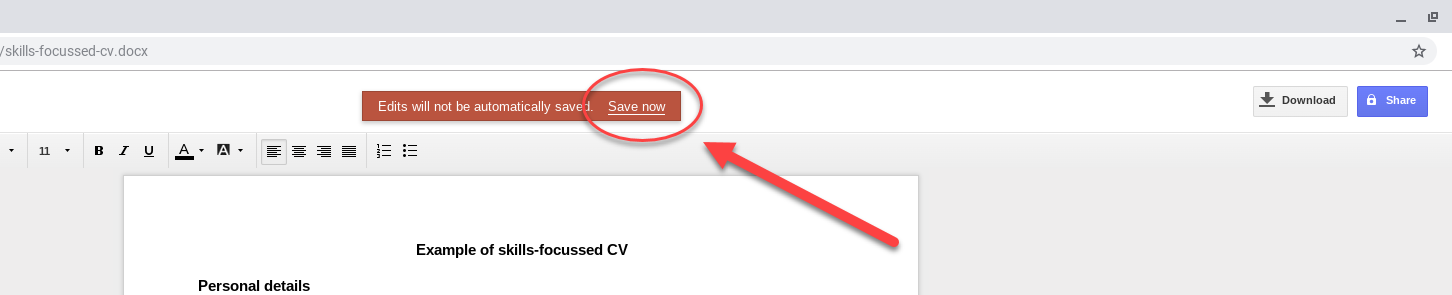
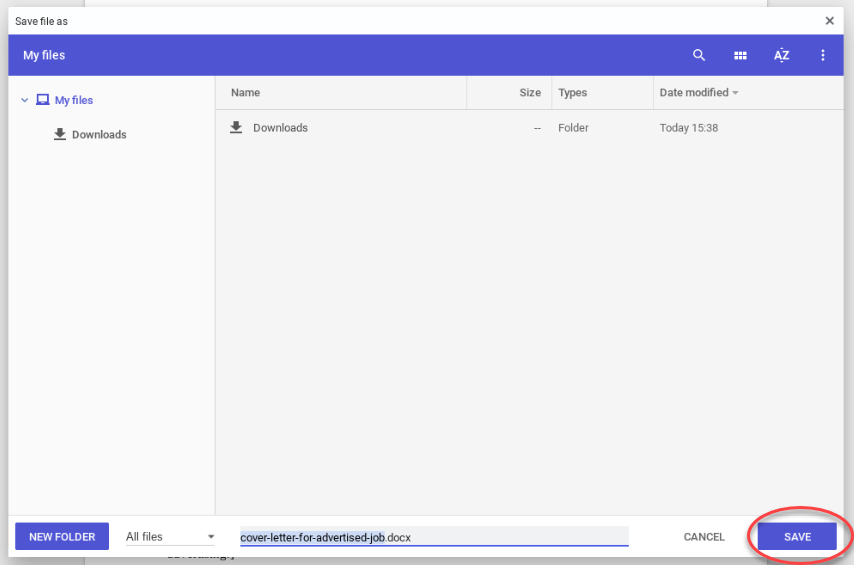
- The file explorer window will appear. Select ‘Save’. This will save it into the kiosk local
folder.
- A message will display at the top of the screen: ‘File saved. All edits will now be saved
automatically. Dismiss’. This means your document has been saved and any more changes you make will
be automatically saved.

- Email the document to yourself (it will be deleted once you select ‘Exit session’).
Save to USB
- Plug your USB stick into the USB port at the front of the kiosk under the screen.
- A message will display in the bottom right-hand corner of the screen to show the USB is connected:
‘Removable device detected’.
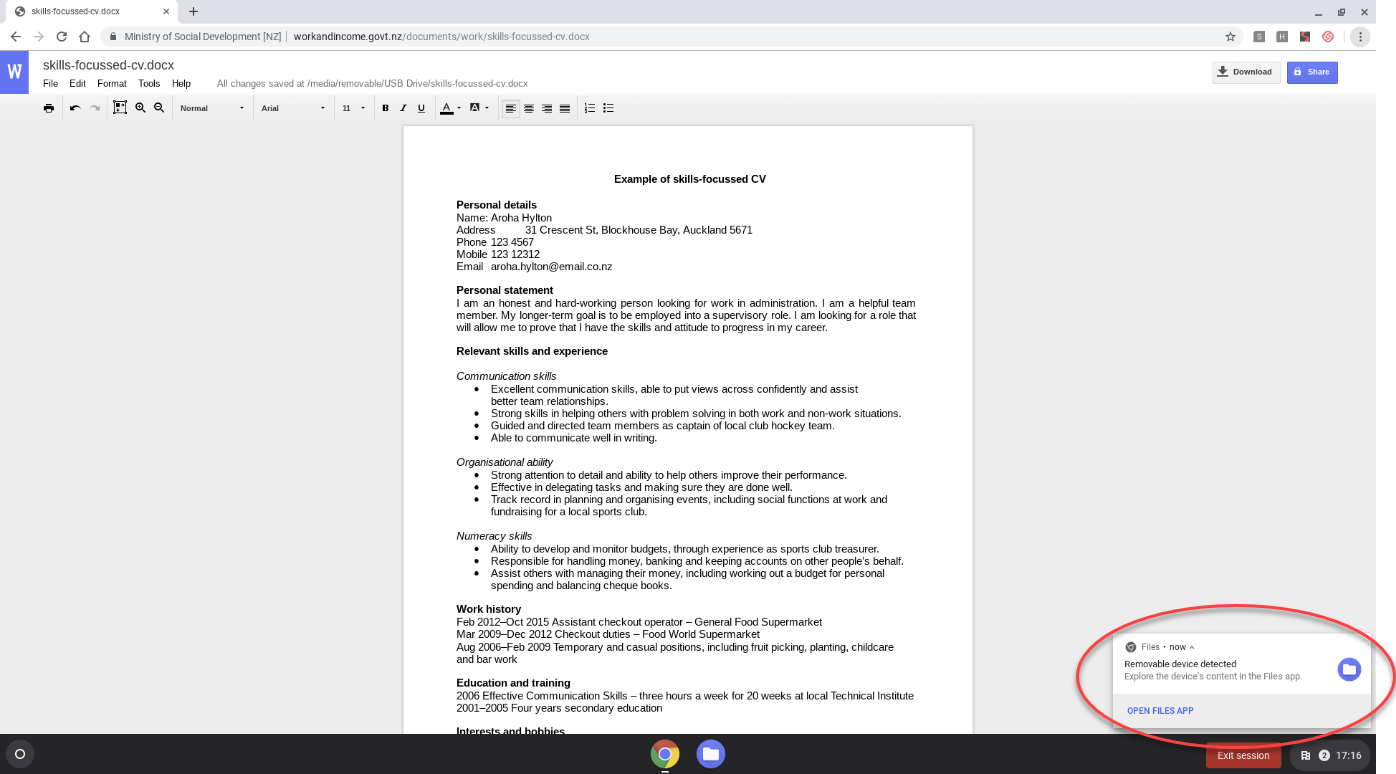
- Select the browser tab that has your document.
- A message will display at the top of the page: ‘Edits will not be automatically saved. Save now’.
Select ‘Save now’.
- The file explorer window will appear.
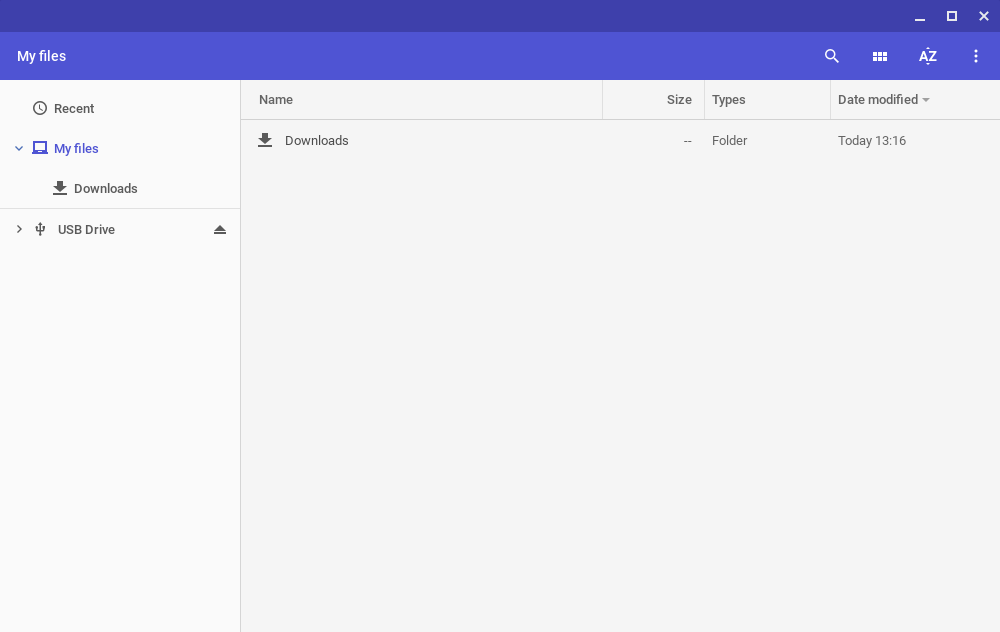
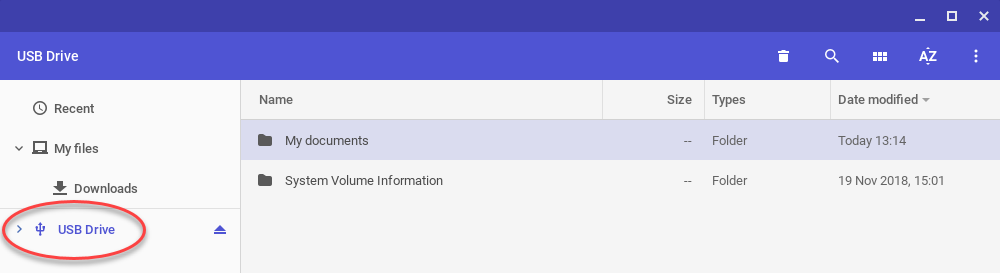
- Select the name of your USB stick on the left-hand side. This will show the contents of your
USB.
- If you want to rename your file:
- highlight the document name
- enter the new document name, eg, John Smith CV.
- Select the ‘Save’ button.
- The file explorer will close and your document will appear.
- 10. A message will display at the top of the screen: ‘File saved. All edits will now be saved
automatically. Dismiss’. This means your document has been saved, and any more changes you make will
be automatically saved to your USB.
Save to Google docs
You need a Google login, eg for a Gmail account, to save to Google docs.
- Select the browser tab that has your document.
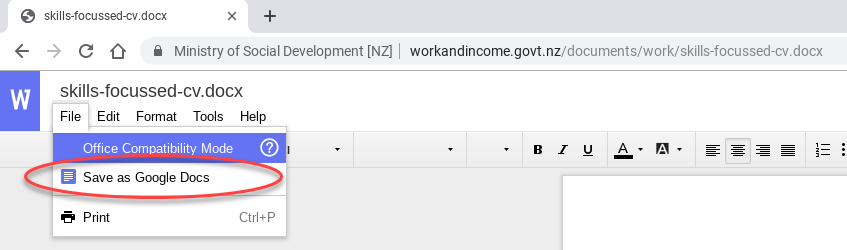
- Select ‘File’ from the top menu and ‘Save as Google Docs’.
Your next steps will depend on if you're:
Not already signed in to Gmail
If you’re not signed in to your Gmail account, you’ll get a message: ‘Something’s not right. You need to sign in to your Google Account in order to convert this file.’
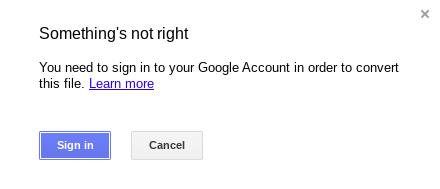
This means you need to sign in before you can go any further:
- Select the ‘Sign in’ button
- Follow the steps under Sign in to your Gmail account.
- Come back to this section and follow the rest of these steps.
Already signed in to Gmail
If you’re signed in to your Gmail account, you can continue following these steps.
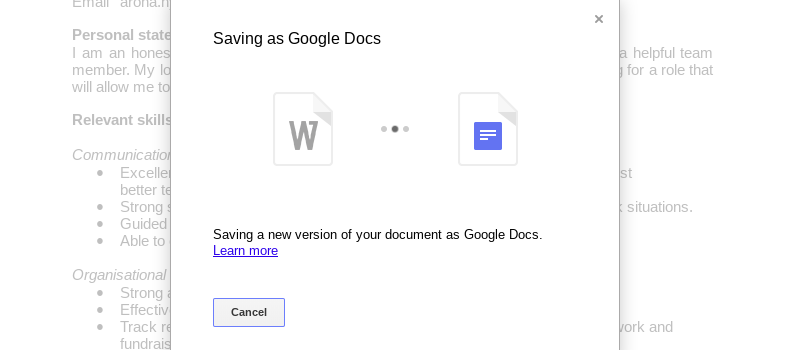
- A progress screen will display telling you the document is being saved to your Google Docs
account.
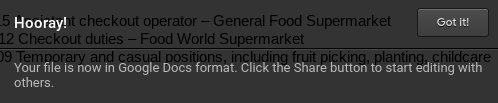
- Once it has successfully saved, a message will display at the bottom of the screen: ‘Hooray! Your
file is now in Google Docs format. Click the Share button to start editing with others.’
- It will then open your document in Google Docs in a new tab.
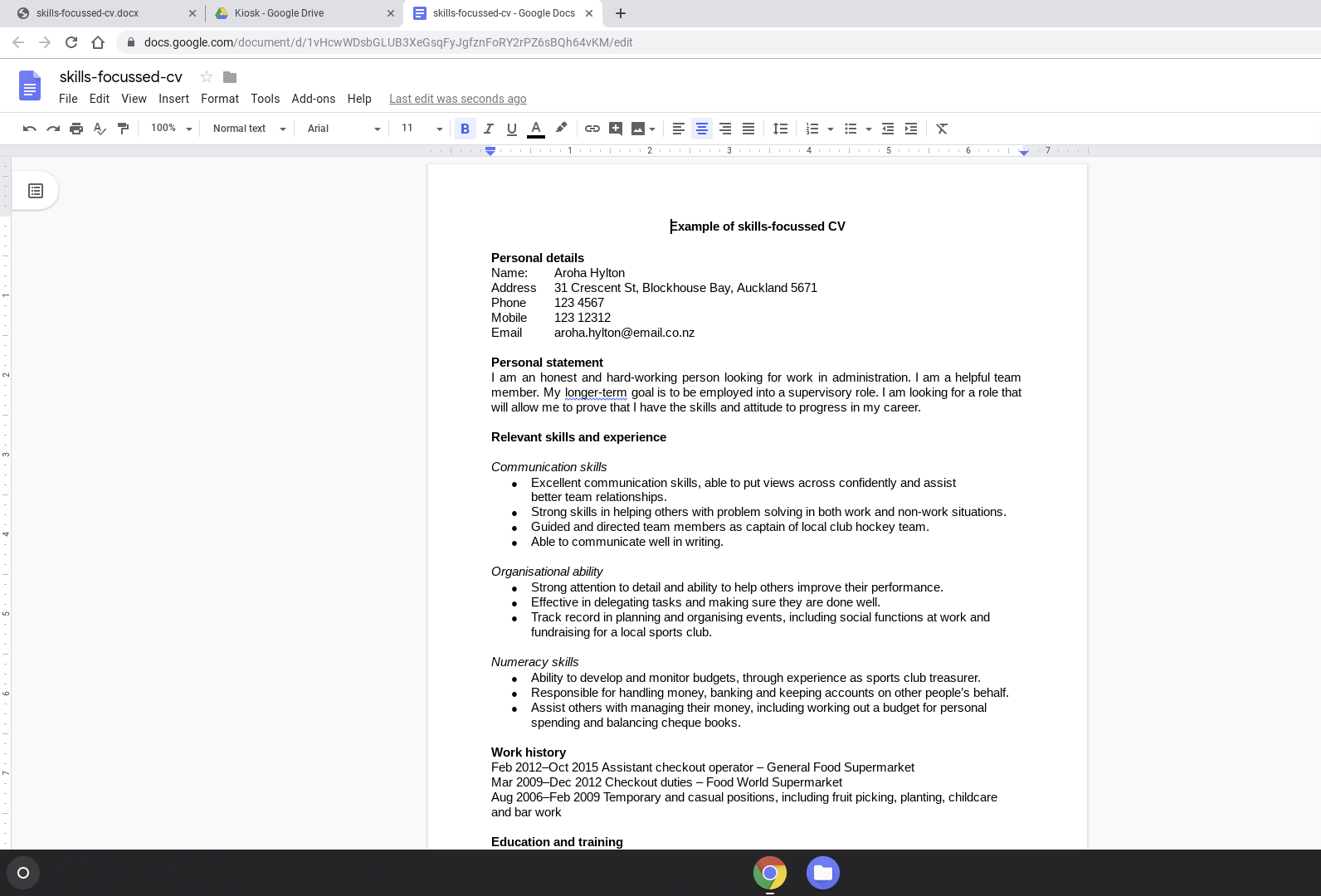
- You can edit the document directly in Google Docs (while you’re logged into your account). It will automatically save the changes as you make them.
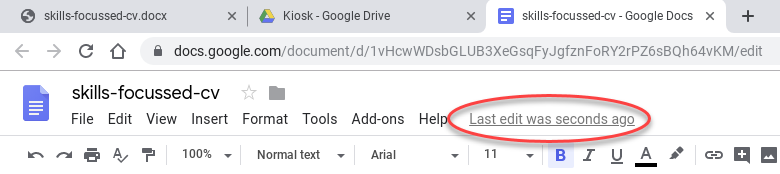
- A message will display at the top of the page (beside ‘Help’ in the toolbar) to tell you when your
document was last edited.
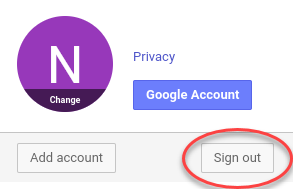
- Once you have finished editing your document, select the coloured initial letter in the top
right-hand corner of the screen.

- A popup window will display. Select the ‘Sign out’ button to log out of your account.
- You can close the browser tab or select the ‘Exit Session’ button to exit

How to sign in to your Gmail account
If you’re trying to save your document to Google docs, but haven’t signed in to your Gmail account, follow these steps.
- You’ll get a message: ‘Something’s not right. You need to sign in to your Google Account in order
to convert this file.’ Select the ‘Sign in’ button (if you haven’t already done this).
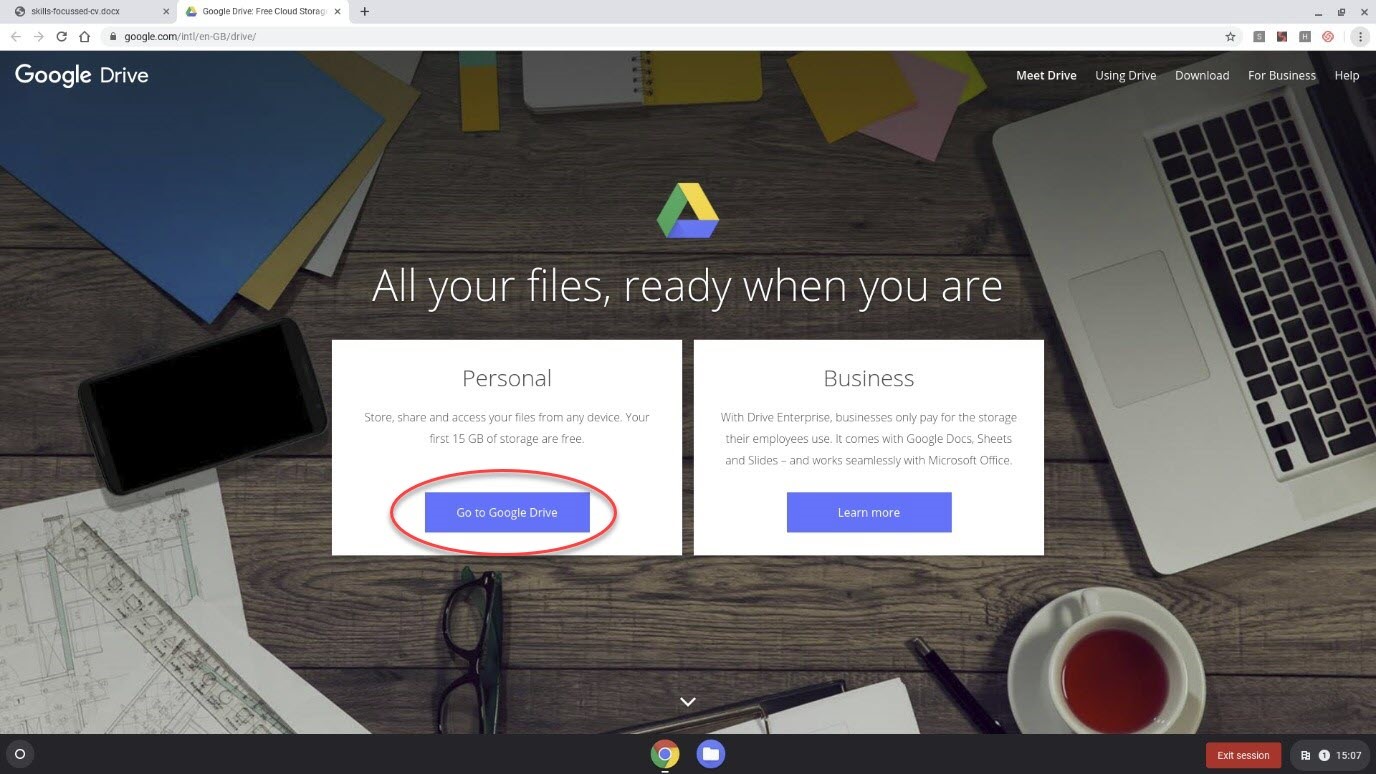
- A new browser tab will open with the Google Drive home page. Select the ‘Go to Google Drive’
button.
- The Google sign in page will appear.
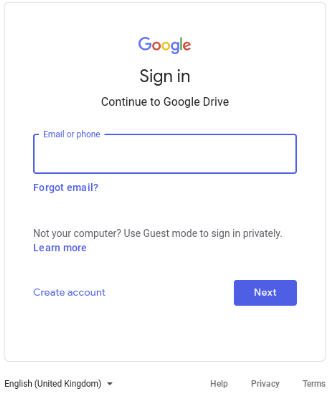
- Enter your email address and select ‘Next’.
- Enter your password and select ‘Next’.
- Google drive will appear. This is where your document will be stored.
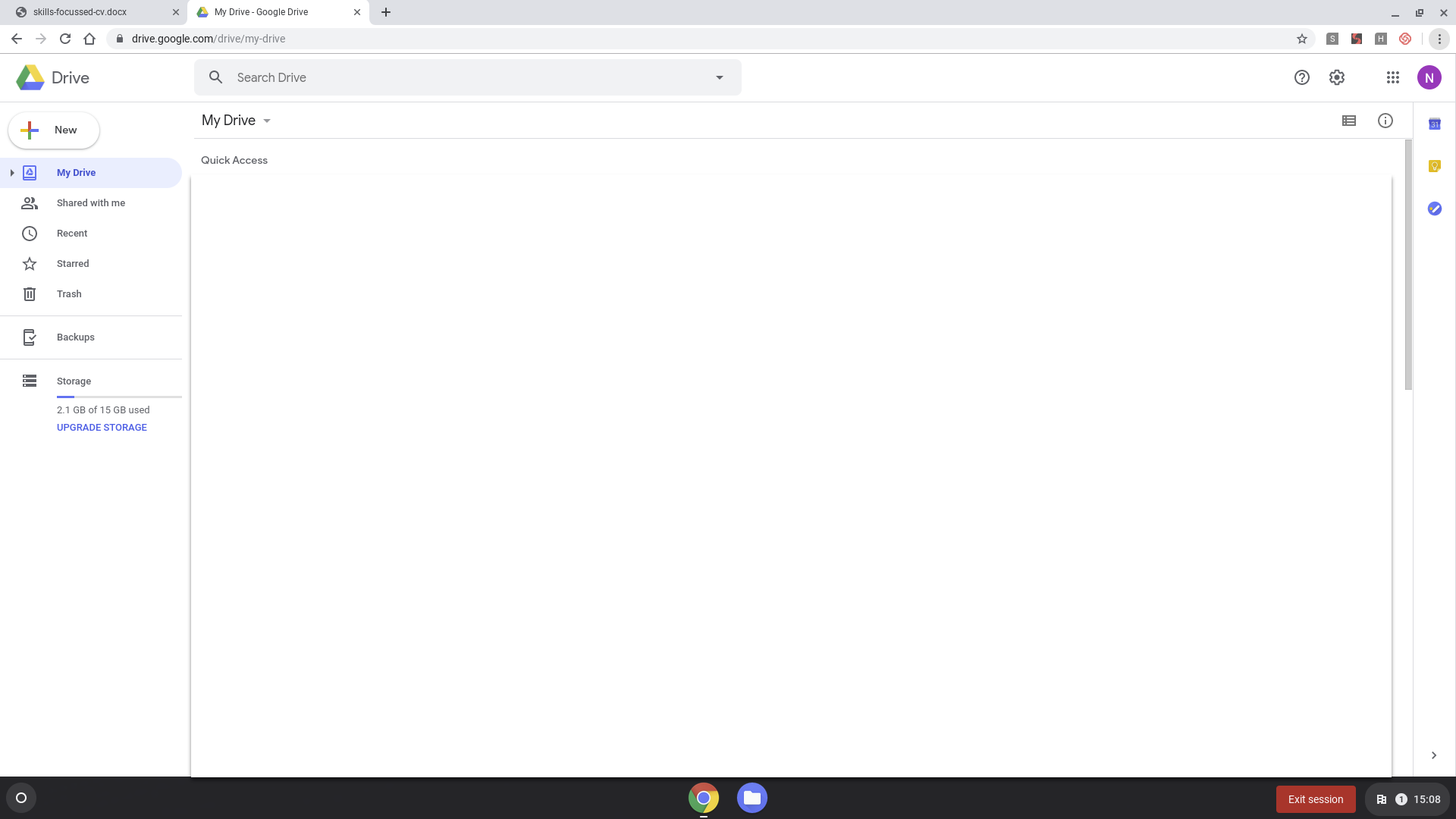
To continue saving your document to Google Docs, continue the steps under Already signed into Gmail.