Google and MSD search
You can use the search box on the kiosk home page to search Google or MSD websites.
Jump to:
Google search
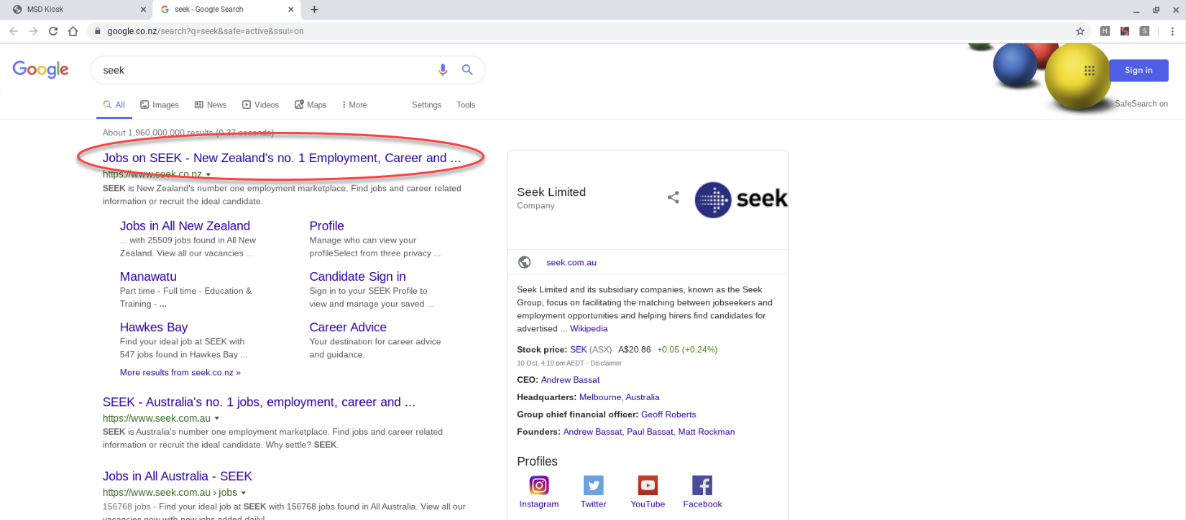
- Type your keywords into the search box, for example, ‘Seek’.
- Select ‘Search’ to run your search.

- A new browser tab will open with the search results. Select the blue heading (hyperlink) of a
website you want to look at, eg ‘Jobs on SEEK’.
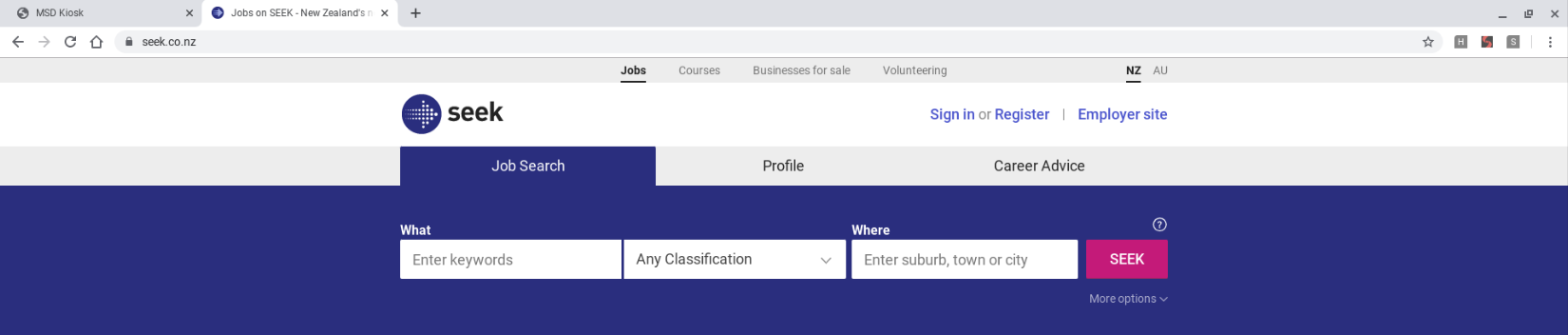
- The website will open in the browser tab you’re already in.
- Once you’ve finished looking at the website you can either:
- select the ‘X’ in the top right-hand corner of the browser tab to close it, or
- select the tab called ‘MSD Kiosk’ to go back to the kiosk.

MSD only search
- Type your keywords into the search box, for example, ‘accommodation’.
- Select the ‘Only search MSD websites’ button.
- Select ‘Search’ to run your search.

- A new browser tab will open with the search results. You’ll see results across all the MSD websites that relate to ‘accommodation’.
- Select the card of the website you want to look at.
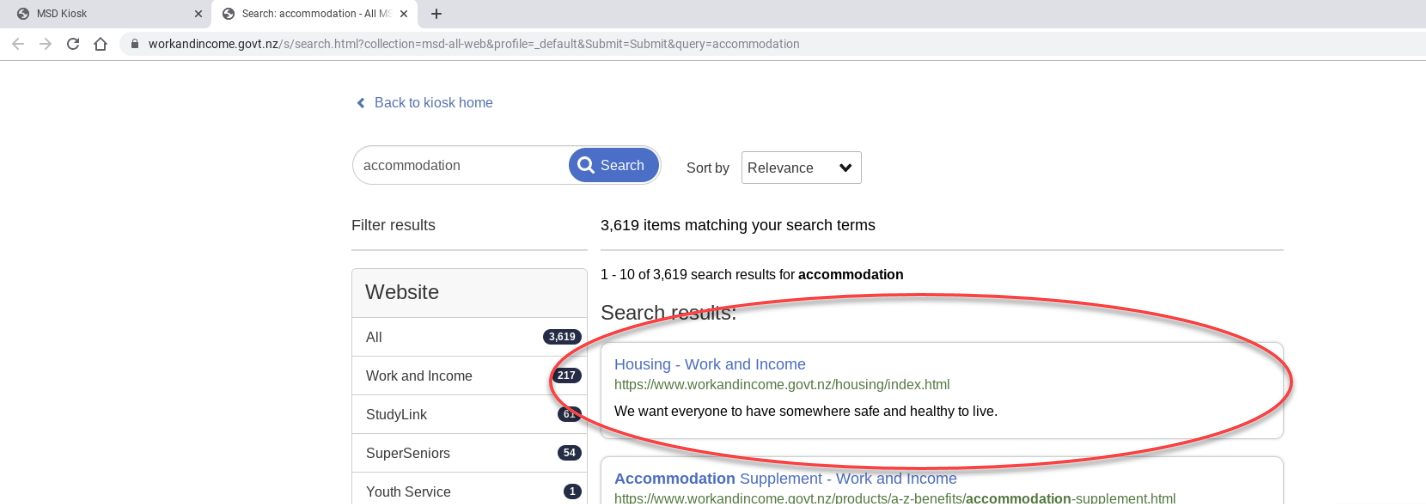
- The website will open in the browser tab you’re already in.
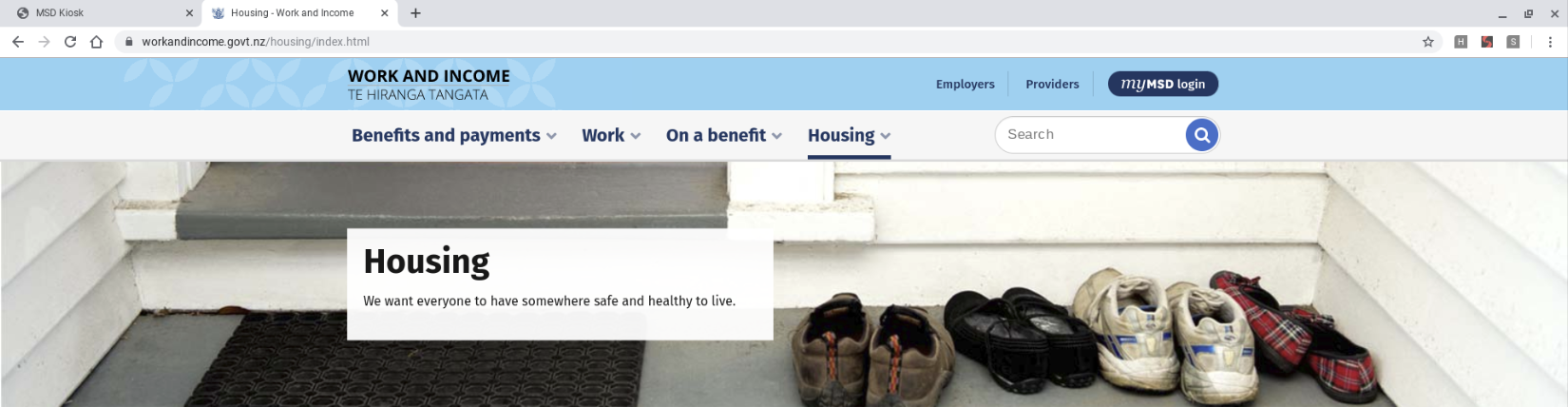
- Once you’ve finished looking at the website you can either:
- select the ‘X’ in the top right-hand corner of the browser tab to close it, or
- select the tab called ‘MSD Kiosk’ to go back to the kiosk.

Filter to narrow your search
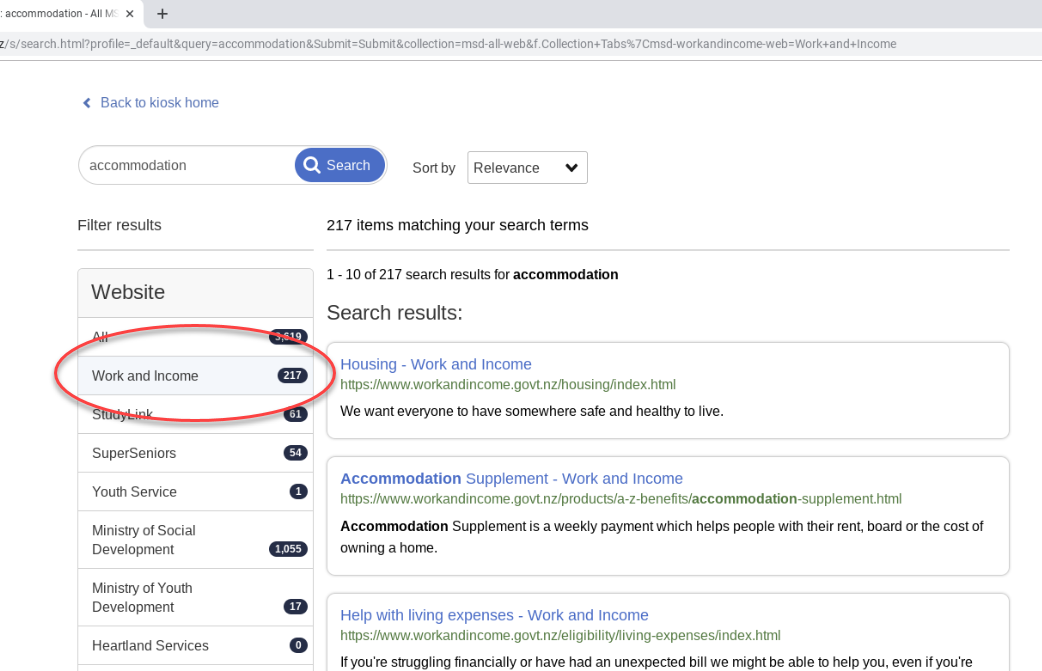
You can use the ‘Filter results’ option on the left-hand side to narrow down your search.
Select the website name, eg ‘Work and Income’. The results for that website will display in the search results on the right-hand side.