Customising your session settings
This page can help you customise the settings on the kiosk while you’re using it.
Open the settings to customise
You can customise your session settings by selecting the ‘More tools’ button in the bottom right of the Kiosk screen.

A pop up box will appear with different options to customise your settings.
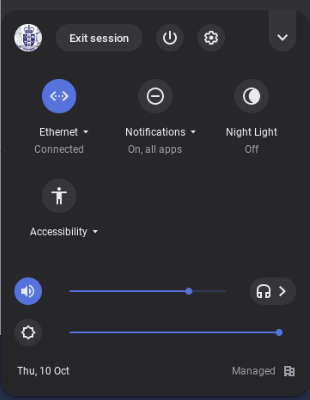
The settings available for customising are:
- Exit session
- Restart kiosk
- Kiosk settings
- Change view
- Ethernet connected
- Notification settings
- Night light
- Accessibility
- Volume
- Contrast
Exit session
Select the 'Exit session' button to exit your kiosk session. This will clear all your browsing history, data and files from the kiosk.
Restart kiosk

Select the 'Restart kiosk' button to restart the kiosk. This will clear all your browsing history, data and files from the kiosk.
Kiosk settings

You can’t change the kiosk settings. If you select the 'Kiosk settings' button, a message will display telling you that the settings for the kiosk are blocked.
Change view

Select the 'Change view' button to reduce the number of icons in the pop up box.
Ethernet connected
Ethernet connected lets you know that the kiosk is connected to the internet.
Notification settings
Select the 'Notification settings' button to turn off any system notifications while you are using the kiosk.
Night light
Select the 'Night light' button to turn the Night Light on or off.
If the screen is too bright when the Night Light is off, turning the Night Light on will make the screen dimmer.
Accessibility
Select the 'Accessibility' button to access the in-built accessibility features on the kiosk.
More information about using accessibility toolsVolume

If you have headphones plugged into the kiosk, you can control their volume using the 'Volume' button.
Contrast

You can use the 'Contrast' button to control the screen contrast.